
Git Visually: What I Wish I Knew Before My First Commit
From pancakes_FINAL_v3.md to rebase, fixup and bisect: one picture per idea, in the order you will actually need them.

Git stores snapshots and shows you line-by-line diffs, which makes it great for text and poor for big binary files. Daily work comes down to 3 areas, commits that point to their parent, and branches that are just movable labels. Once you have those pictures in your head, undoing, collaborating, rewriting history and debugging are variations on the same graph.
This is the guide I wanted when I started with Git: every idea gets one picture, in the order you will actually need it. It is long on purpose. Use the table of contents on the right and jump to what you need.
I wrote a shorter post earlier about squashing commits. This one starts from zero and goes further.
Everything runs on a toy repository called recipe-book, with files like pancakes.md and cookies.md. Commits get short ids (aaa, bbb, ccc...) instead of real 40-character hashes. main is the black label, feature branches are orange, and a prime (ccc') means "same change, new id". Click any figure to zoom. I tested the commands and the outputs shown here with Git 2.34; newer features say which version they need.
Life before Git was a folder full of copies
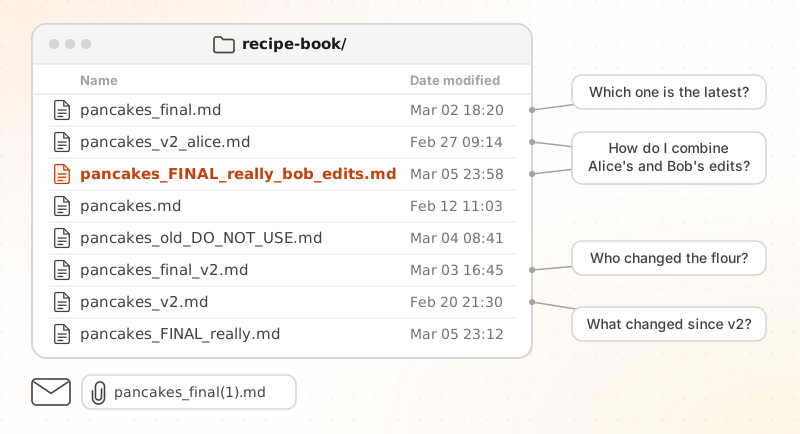
Everyone starts this way. You copy the file before a risky edit, you add _final, then _final_v2, then _FINAL_really. It works until a second person touches the file.
A version control system answers 4 questions that the folder cannot:
- Which version is the latest?
- What exactly changed between two versions?
- Who changed it, and why?
- How do two people edit the same file without overwriting each other?
Git stores snapshots and shows you line diffs
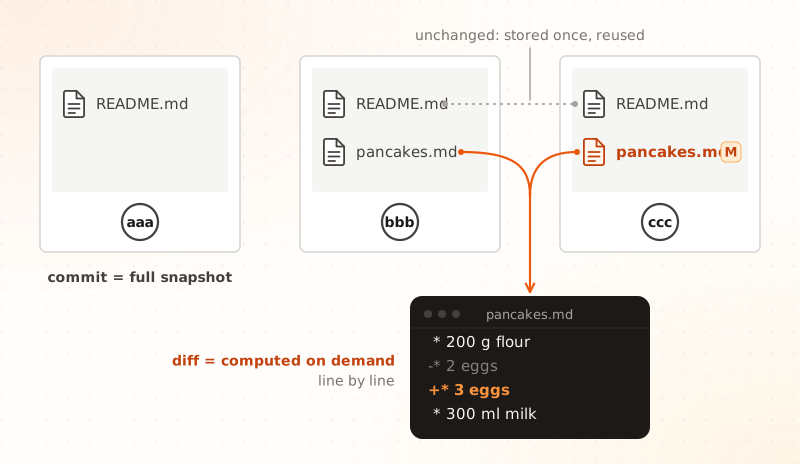
A common belief is that Git saves "the changes" of each commit, line by line. It does not. A commit records the whole state of your project at one moment, like a photo. A file that did not change is not copied again: the new snapshot points to the same stored content. Behind the scenes, Git also compresses old data, but that is an optimization you never have to think about.
The line-by-line view that you see in git diff or on GitHub is computed on demand by comparing two snapshots. That is why Git is so good with text, and why it is a poor fit for some other files.
Compared with other ways of sharing files:
| Copied folders | Dropbox or Drive | SVN | Git | |
|---|---|---|---|---|
| History per line | No | No, only whole file versions | Yes | Yes |
| Who changed what | In the file name, if you are lucky | Per file, by account | Yes | Yes, down to the line (git blame) |
| Work offline | Yes | Partly, it syncs later | Most commands need the server | Yes, everything except sharing |
| Merge two edits | By hand | "Conflicted copy" files | Yes | Yes, automatic when the edited lines differ |
| Branches | Copy the folder | Copy the folder | Yes, as server-side copies | Yes, a label on a commit (almost free) |
What really sets Git apart is not the snapshots. It is that every clone holds the whole history (it is distributed), and that branches cost almost nothing.
Git loves text and struggles with binary files
Because a diff compares lines, Git works best on files made of lines of text.
| File type | Fit | Why |
|---|---|---|
| Code, Markdown, LaTeX, JSON, YAML, config files | Great | Line diffs, easy merges, small size |
| Word documents, spreadsheets, PDFs | Poor | They are zipped or binary, so Git sees an opaque blob |
| Images, audio, video, 3D assets | Poor | No useful diff, and every version is stored in full |
| Datasets, model weights, build outputs | Poor | Large files, repository size explodes |
.env files and keys |
Never | Secrets must not enter the history |
Git still stores binary files, but it cannot show what changed inside them:
$ git diff
Binary files a/photos/pancakes.jpg and b/photos/pancakes.jpg differ
If you need to version big files, jump to Git LFS at the end.
Part 1: your first commits
Tell Git who you are, once
Every commit carries a name and an email. Set them once for your machine:
git config --global user.name "Alice"
git config --global user.email "[email protected]"
git config --global init.defaultBranch main
git config --global core.editor "code --wait"
The last two lines are optional: the first names the first branch main, the second picks the editor that opens for commit messages (here VS Code or Cursor).
Anyone can type your email in their config and commit "as you". Part 7 shows how signatures fix this.
One hidden folder turns a project into a repository
mkdir recipe-book
cd recipe-book
git init
ls -a
. .. .git
git init creates one hidden folder, .git/. That folder is the repository: the whole history lives inside it. Delete it and the folder is a plain folder again. The files around it are your working copy.
Changes travel through three areas

git add picks what goes in the next photo; git commit takes the photo. cookies.md stays behind because nobody added it.This is the most important picture of Git. Your files live in 3 places:
- Working directory: the files you see and edit.
- Staging area (also called the index): the next commit, as you are preparing it.
- Repository (
.git/): the commits already taken.
Think of a photo: staging is what you place in the frame, the commit is the photo. This is why you can edit 5 files and commit only 2 of them.
git add pancakes.md
git commit -m "feat(pancakes): add 1 tbsp of sugar"
Two tools help you pick precisely. git add -p lets you stage a file piece by piece (hunk by hunk), and git add . stages everything that changed.
Git status is a map of those areas
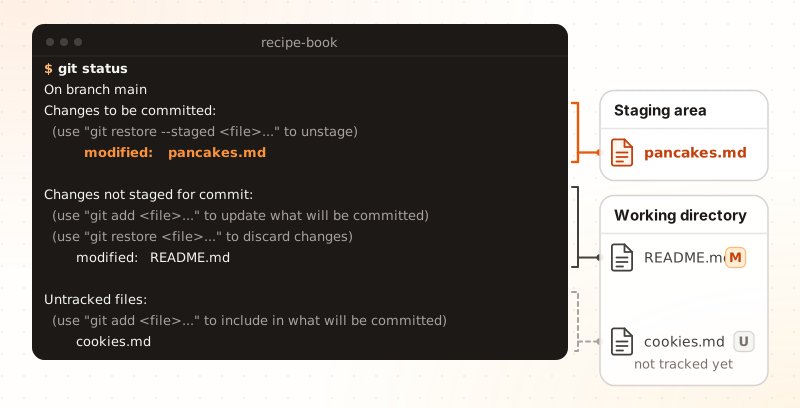
git status maps to an area: staged changes are in the staging area, unstaged edits and untracked files are in the working directory.Run git status all the time. It tells you where each file is and even suggests the command to move it: git restore --staged to unstage, git add to stage.
Reading a diff takes ten seconds
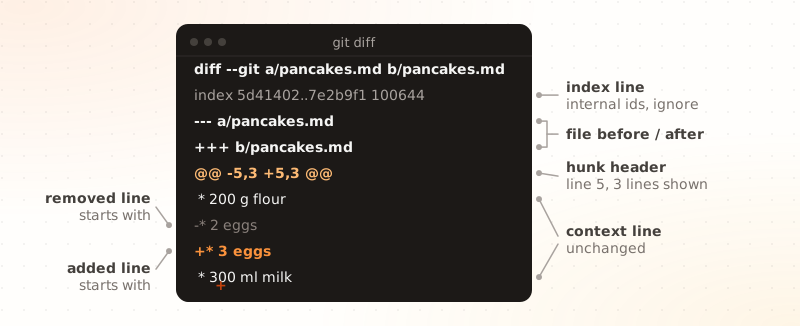
Skip the first 4 lines. Read the lines that start with - (removed) and + (added). The lines without a sign are context, shown only so you can find your place. @@ -5,3 +5,3 @@ means "starting at line 5, 3 lines shown" on both sides.
There are 3 diffs, one per pair of areas:
| Command | Compares | Use it to answer |
|---|---|---|
git diff |
Working directory vs staging area | What have I edited but not staged yet? |
git diff --staged |
Staging area vs last commit | What will my next commit contain? |
git diff HEAD |
Working directory vs last commit | Everything I changed since the last commit |
Ignore what should never be committed
Some files must stay out of the repository: dependencies, build outputs, editor files, and secrets. List them in a file named .gitignore:
# secrets
.env

# dependencies and build output
node_modules/
dist/
__pycache__/

# editor and system files
.vscode/
.DS_Store
GitHub keeps ready-made lists in github/gitignore. If a file is already tracked, adding it to .gitignore is not enough. Stop tracking it, and keep it on disk, with git rm --cached .env.
Deleting the file in a later commit does not remove it from the past. If a password or an API key was committed, revoke it first, then clean the history (see the FAQ at the end).
A commit is a snapshot that points to its parent
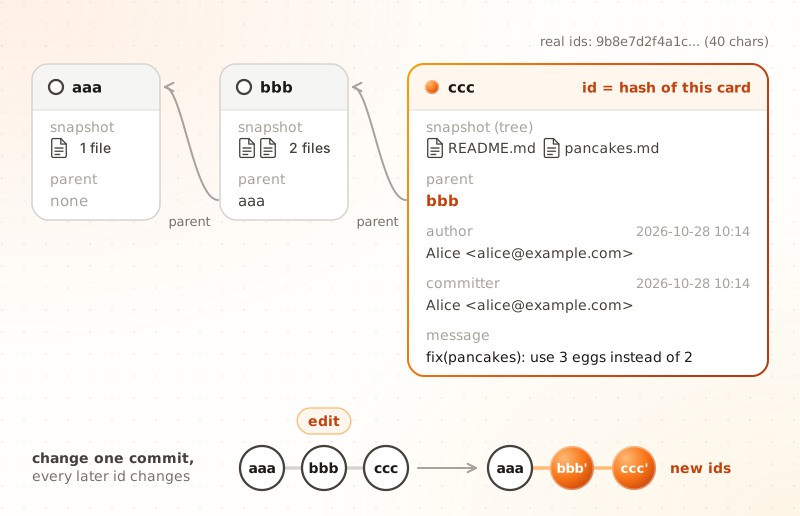
A commit holds 4 things: a snapshot of the project, a pointer to its parent (the commit before), who made it and when, and a message. Its id is a hash computed from all of that. In my pictures the ids are aaa, bbb, ccc. In real life they look like 9b8e7d2f4a1c... and have 40 characters (you can use the first 7).
The parent link is the key. Because the id includes the parent's id, changing one commit changes every commit after it. Remember this domino effect: it explains why amend, rebase and force-push behave the way they do in Parts 2 and 5.
One commit, one idea
Small commits that each do one thing are easier to review, to revert, to cherry-pick and to bisect (Part 6 shows why). A simple rule: if your message needs the word "and", split the commit.
Here is a history I would not want to inherit:
$ git log --oneline
e4a1c90 update
b72d3f1 fix stuff and add cookies
9c0e8a4 wip
a1f5b36 more changes
7d2c0be first version
And the same work as small, readable commits:
$ git log --oneline
e4a1c90 docs(readme): list all recipes
b72d3f1 feat(pancakes): add 1 tbsp of sugar
9c0e8a4 fix(pancakes): use 3 eggs instead of 2
a1f5b36 feat(pancakes): add pancakes recipe
7d2c0be docs: add README
A good message has a short title (about 50 characters, in the imperative: "Add", not "Added"), a blank line, then a body that explains why the change was needed. Part 7 compares message conventions.
fix(pancakes): cook 2 min per side, not 5

5 minutes burned every batch on a standard pan.
Measured on 3 pans: 2 min gives a golden crust.
See your history as a graph
git log --oneline --graph --all
--oneline shows one line per commit, --graph draws the branches, and --all includes every branch, not only the current one. This command is long, so give it a short name once:
git config --global alias.lg "log --oneline --graph --all"
git lg
HEAD means you are here, HEAD~N counts back
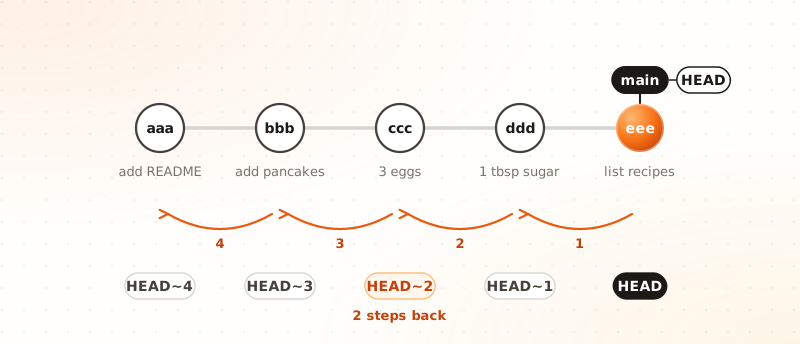
~N walks N parents back.HEAD is a pointer to the commit you are working on. Most of the time it sits on the tip of your current branch. HEAD~1 is its parent, HEAD~2 is the grandparent, and so on. You will type these a lot:
git show HEAD~2          # what the commit 2 steps back contains
git diff HEAD~3 HEAD     # everything changed in the last 3 commits
git reset --soft HEAD~1  # undo the last commit, keep the changes (Part 2)
Part 2: every mistake has an undo
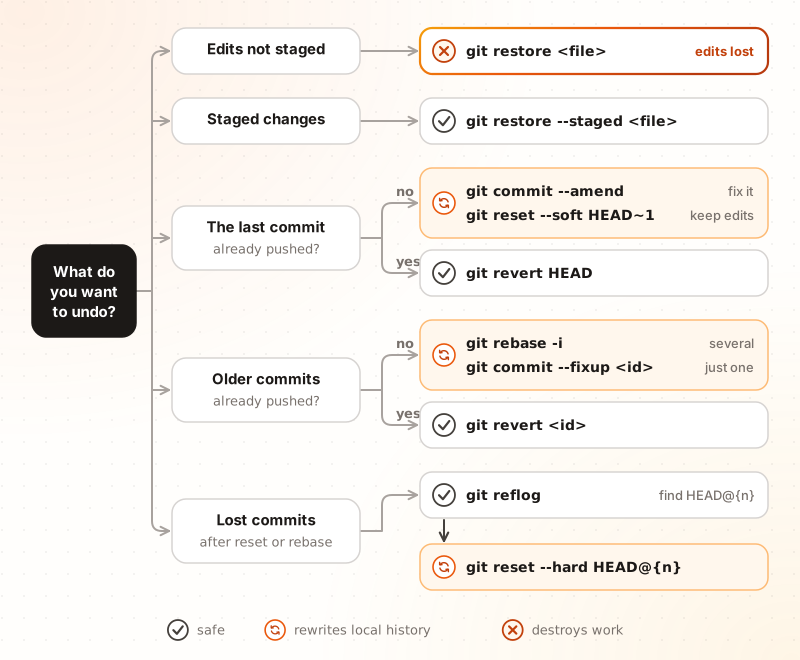
Git has a different undo command for each place a mistake can be. Find yours in this table, then read the matching section.
| Where is the mistake? | Command | Safe? |
|---|---|---|
| An edit I have not staged | git restore <file> |
No, the edit is lost for good |
| A file I staged by mistake | git restore --staged <file> |
Yes |
| The last commit (message, forgotten file) | git commit --amend |
Yes, if not pushed yet |
| Several local commits | git reset |
Yes, if not pushed yet |
| A commit already pushed | git revert <id> |
Yes, history only grows |
| A commit that seems lost | git reflog |
Yes, it only reads |
The cheat sheet at the end has a flowchart of the same choices, and the FAQ covers concrete situations.
Restore discards edits or unstages a file
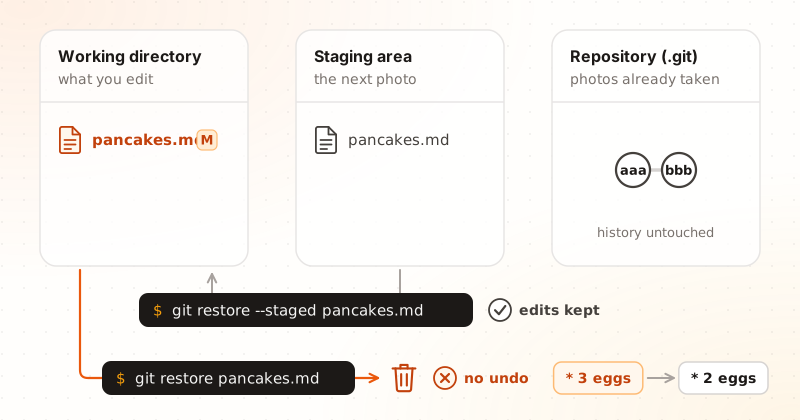
--staged only takes a file out of the next commit. Without it, your unstaged edits are overwritten and nothing can bring them back.git restore --staged pancakes.md # unstage, keep my edits
git restore pancakes.md # throw my edits away
Git only remembers what you committed (or at least staged). An unstaged edit that you restore is gone, and no command brings it back.
Amend replaces the last commit
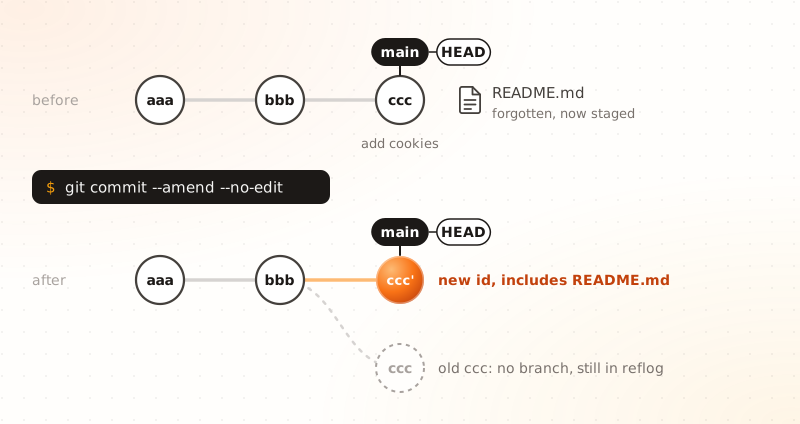
ccc stays in the reflog for a while.You forgot a file, or you have a typo in the message. Stage what is missing, then:
git add README.md
git commit --amend --no-edit   # keep the message
git commit --amend             # or open the editor to change it
Remember the domino effect: ccc' has a new id. That is harmless on a local commit. If ccc was already pushed, you must push again with a lease (Part 5).
Reset moves your branch back in time
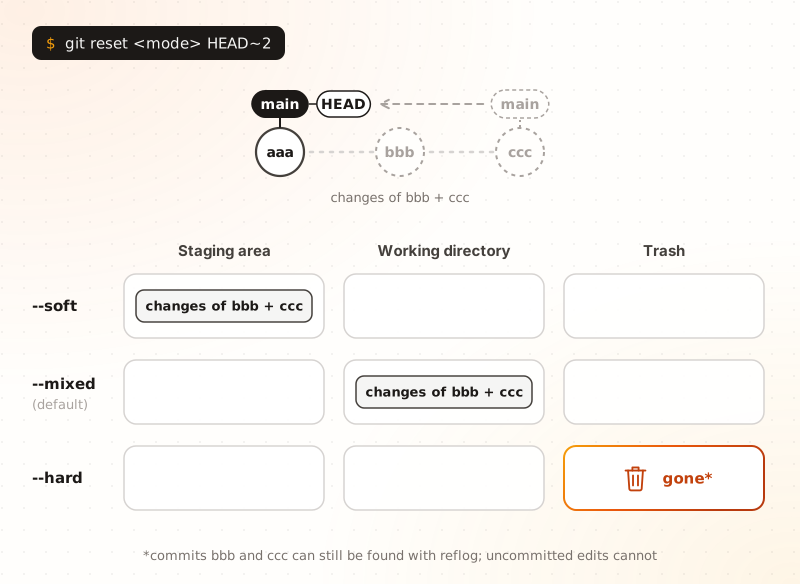
main back to aaa. The mode only decides where the changes of bbb and ccc end up.git reset moves the current branch to another commit. The mode decides what happens to the changes of the commits you leave behind:
| Mode | Branch | Staging area | Working directory |
|---|---|---|---|
--soft |
Moves | Keeps the changes, staged | Untouched |
--mixed (default) |
Moves | Emptied | Keeps the changes, unstaged |
--hard |
Moves | Emptied | Emptied: the changes are gone |
git reset --soft HEAD~2   # "un-commit" the last 2 commits, ready to commit again
git reset HEAD~2          # same, but the changes are unstaged
git reset --hard HEAD~2   # drop the last 2 commits and their changes
--soft is how you squash by hand: reset, then make one new commit. --hard is the dangerous one, because it also wipes uncommitted edits (see the reflog just below for the committed part).
Revert undoes a commit by adding its opposite
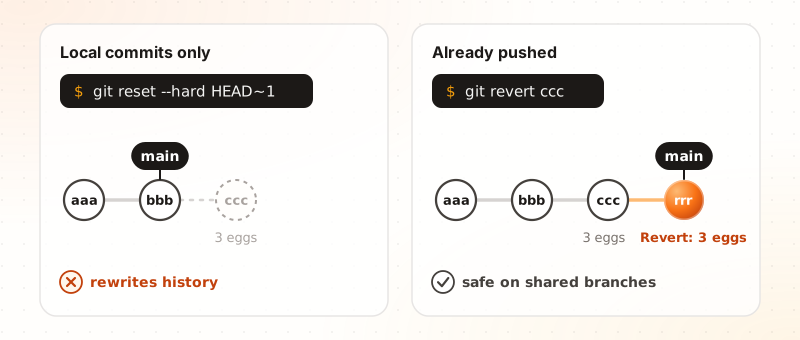
ccc off the branch. On pushed commits, revert adds rrr, which cancels it: history only grows.git revert ccc creates a new commit that applies the opposite changes of ccc. Nothing is rewritten, so it is safe on a branch that other people already pulled.
On commits that are still local, prefer reset. A revert leaves the mistake and its undo in the history forever.
Reverting a merge commit
A merge commit has two parents, so Git needs to know which side to keep. Use -m 1 to keep the first parent (the branch you merged into, usually main):
git revert -m 1 <merge-id>
There is a trap. After this revert, Git considers the merged branch as "already merged". If you merge the same branch again later, only the commits made after the first merge come back. To bring the original changes back, you must first revert the revert.
Reflog finds commits you thought you lost
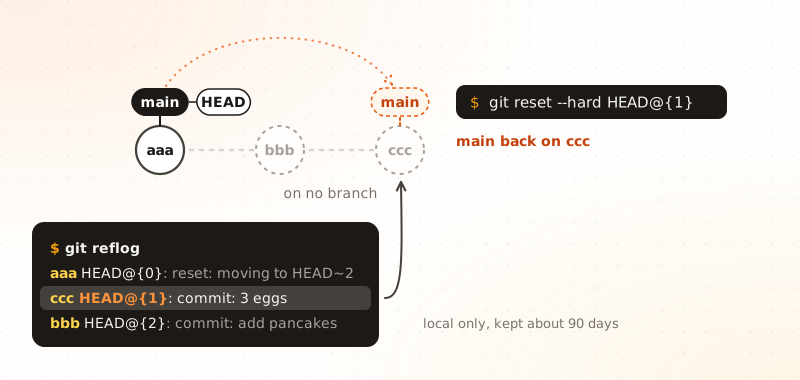
Git rarely deletes a commit right away. When you reset, amend or rebase, the old commits just stop being reachable from a branch. The reflog is a diary of where HEAD has been, so you can still find them:
$ git reflog
7d2c0be HEAD@{0}: reset: moving to HEAD~2
9c0e8a4 HEAD@{1}: commit: fix(pancakes): use 3 eggs instead of 2
a1f5b36 HEAD@{2}: commit: feat(pancakes): add pancakes recipe
In the picture, these three lines are aaa, ccc and bbb: the reset moved main back to aaa, and HEAD@{1} is where HEAD was one move ago.
git reset --hard HEAD@{1} # go back to where I was one move ago
Right after a reset, a merge or a rebase, Git also saves the previous position in ORIG_HEAD, so git reset --hard ORIG_HEAD is a quick "undo that".
Two limits. The reflog is local: it is not pushed, and a fresh clone has none. And entries expire: 90 days by default, and 30 days for commits that no branch reaches anymore. It also cannot recover edits that were never committed.
Part 3: branches, remotes and conflicts
A branch is a sticky label on a commit

A branch is not a copy of your project. It is a name that points to one commit, and it moves forward each time you commit on it. That is why creating a branch is instant, and why you can have dozens.
git switch -c feature/cookies   # create the label and move to it
git switch main                 # go back
git branch                      # list branches
Older tutorials use git checkout for everything. Since Git 2.23, the job is split in two clearer commands:
| Old command | Current command | What it does |
|---|---|---|
git checkout feature/cookies |
git switch feature/cookies |
Change branch |
git checkout -b feature/cookies |
git switch -c feature/cookies |
Create a branch and move to it |
git checkout -- pancakes.md |
git restore pancakes.md |
Discard edits in a file |
git checkout ccc |
git switch --detach ccc |
Look at an old commit |
A tag is the opposite of a branch: a label that never moves. Use it to mark a release (git tag v1.0, then git push origin v1.0).
If you check out a commit or a tag instead of a branch, HEAD points straight at a commit. Commits made there belong to no branch and are easy to lose. Before you leave, give them a name with git switch -c rescue/cookies.
Merging is a fast-forward or a merge commit
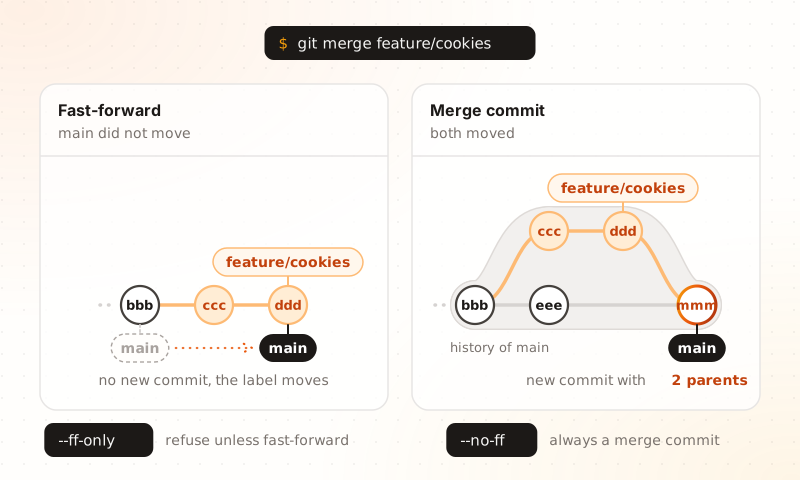
main has not moved, merge just slides the label. If both moved, Git creates a commit with two parents.git switch main
git merge feature/cookies
What Git does depends on the history:
mainhas not moved since you branched: Git slides themainlabel forward to the end of your branch. This is a fast-forward. No new commit, same ids.- Both moved: Git creates a merge commit with 2 parents, one for each side.
A plain git merge already fast-forwards when it can. Two options force the behavior: --ff-only refuses to merge unless a fast-forward is possible (it never creates a merge commit), and --no-ff always creates a merge commit, even when a fast-forward was possible.
What main contains after a merge
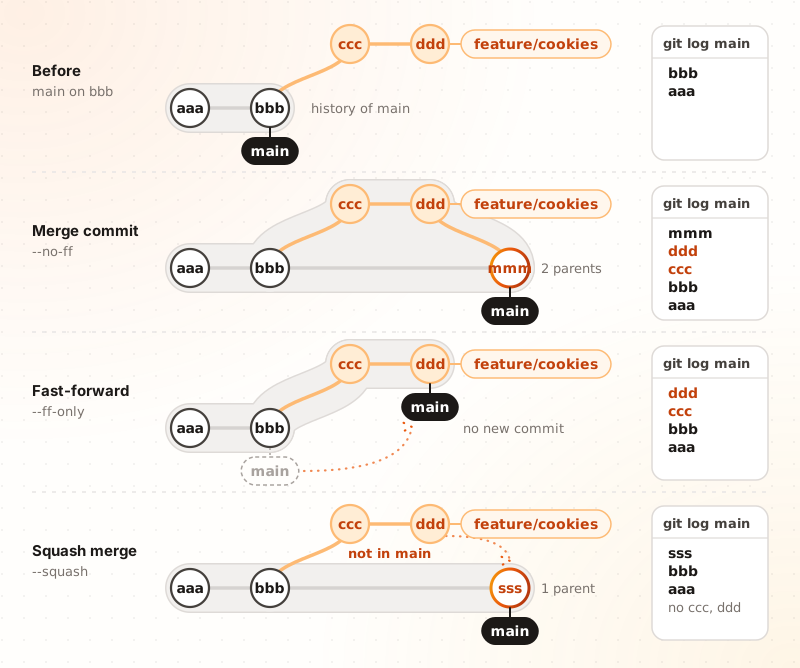
main: everything you can reach by walking back through parents. A merge commit keeps ccc and ddd inside it. Only a squash leaves them out.The history of main is everything Git can reach by starting at main and walking back through the parents. That is what git log main prints.
- Merge commit: nothing is lost.
cccanddddare still part of the history ofmain, even though the graph draws them on a side line. - Fast-forward: the same commits with the same ids, and no new commit.
- Squash: one new commit
ssswith a single parent.cccanddddare not in the history ofmain, only their content survives, insidesss.
Squash has two side effects. git merge --squash only prepares the changes, so you must run git commit yourself. And Git then refuses to delete the branch with -d, because as far as it knows the branch was never merged:
$ git branch -d feature/cookies
error: The branch 'feature/cookies' is not fully merged.
If you are sure you want to delete it, run 'git branch -D feature/cookies'.
Merge commits have two parents, hence the caret
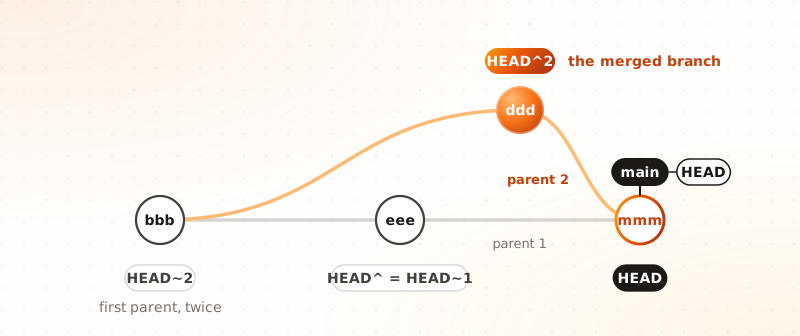
~ follows first parents. ^2 jumps to the second parent of a merge.A merge commit has 2 parents, so "the commit before" is ambiguous. Git uses two notations:
HEAD~Nwalks back through first parents, N times.HEAD^2is the second parent of a merge, the tip of the branch that was merged in.
HEAD^ is a shortcut for HEAD^1, which is the same as HEAD~1. This is the notation you meet in git revert -m 1 above.
Remotes: origin is just a nickname
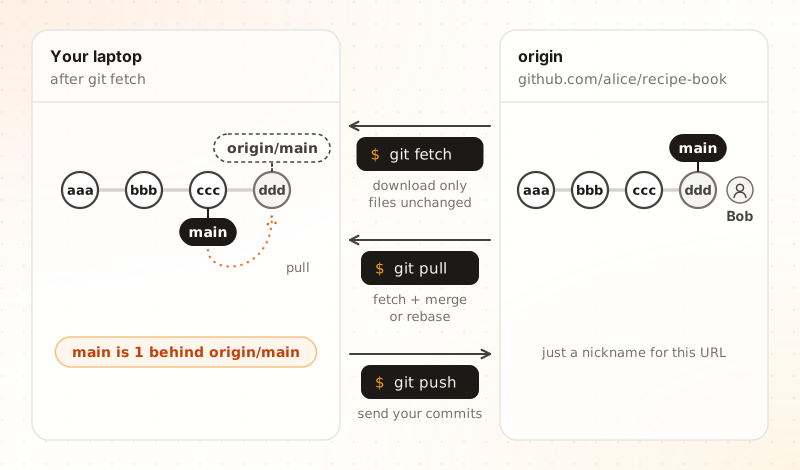
fetch only moves origin/main. pull also moves main. push sends your commits.A remote is another copy of the repository, usually on GitHub or GitLab. origin is only the default nickname for the URL you cloned from.
git remote -v                                   # list remotes and their URLs
git remote add origin [email protected]:alice/recipe-book.git
git push -u origin main                         # first push, remember the upstream
-u links your local main to origin/main, so later a plain git push or git pull knows where to go. For a fork, a common setup is to keep your fork as origin and add the original project as upstream:
git remote add upstream https://github.com/original/recipe-book.git
git fetch upstream
Your clone keeps bookmarks such as origin/main: your last known position of the remote branch. Three commands move things between the two sides:
| Command | What it does |
|---|---|
git fetch |
Downloads new commits and moves the bookmarks. Your branches and files do not change. |
git pull |
git fetch, then integrates the new commits into your branch with a merge or a rebase. |
git push |
Sends your local commits to the remote branch. |
Because pull can merge or rebase, Git asks you to choose when your branch and the remote have both moved. You can set a default once, for example git config --global pull.rebase true, or pull.ff only to refuse anything but a fast-forward. The next sections explain the difference.
GitHub and GitLab add pull requests on top of Git
Git itself has no idea what a pull request is. GitHub calls it a pull request (PR) and GitLab a merge request (MR), but the idea is the same: a page to discuss a branch before it lands on main.
- Create a branch and make commits.
- Push it:
git push -u origin feature/cookies. - Open the PR or MR on the website. Teammates review it and CI runs the tests.
- When it is approved, someone merges it with one of the buttons (Part 7 compares them).
If you do not have write access, you first fork the project (your own copy on the website), push to your fork, and open the PR from there.
Rebase replays your commits on top of main

main: the history is linear, but your commits get new ids.Your branch started from bbb. Meanwhile main moved on to eee. Rebase takes your commits (ccc and ddd), puts them aside, and replays them one by one on top of the new main. The result looks as if you had started your work after eee.
git switch feature/cookies
git rebase main
The replayed commits are new commits. They have the same changes and the same message, but a new parent, so a new id (ccc'). Git keeps the original author date and updates the committer date.
Look at the grey band in the bottom row: after the rebase, main has not moved yet. It is still on eee, so ccc' and ddd' are not part of its history. They get in when main is fast-forwarded to them, which is the subject of the next section.
Never rebase commits that other people already fetched. Their copies keep the old ids, yours get new ones, and the two histories collide.
| Merge | Rebase | |
|---|---|---|
| History | Keeps the real fork, adds a merge commit | Linear, as if you started from the latest main |
| Your commit ids | Unchanged | New ids |
| Conflicts | Resolved once, at the end | Possibly once per replayed commit |
| Shared branch | Safe | Dangerous: it rewrites commits others have |
| Merge commit | Yes (unless it is a fast-forward) | Never |
If the branch was already pushed, a rebase needs a forced push. Part 5 shows the safe way, --force-with-lease.
Rebase and fast-forward are two halves of one move
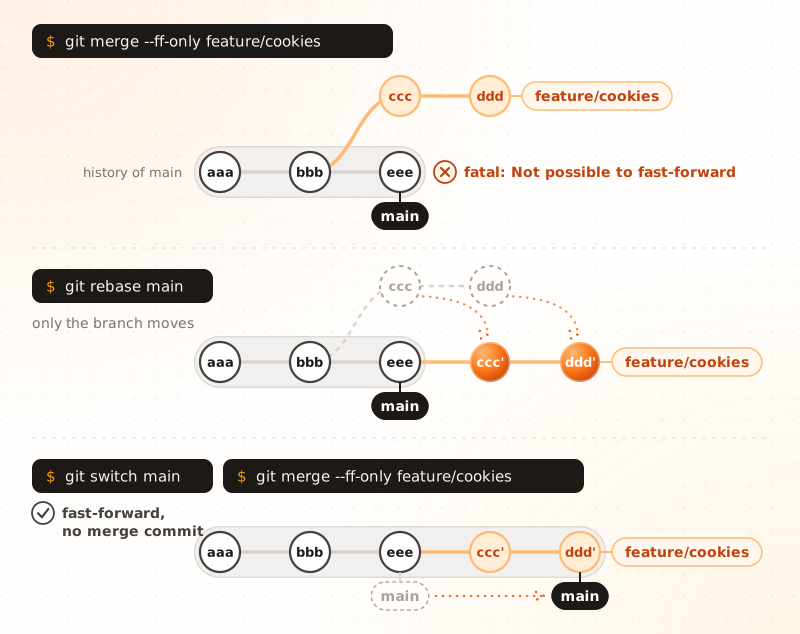
main has moved, git merge --ff-only refuses. Rebase the branch first: only the branch moves. Then the fast-forward slides main onto ddd': one straight history, no merge commit.git rebase and git merge --ff-only often end with the same history, so they look like two ways of doing one thing. They are not, because they move different branches:
git rebase main, run onfeature/cookies, moves your commits.git merge --ff-only feature/cookies, run onmain, moves only themainlabel.
They give the same result when main has not moved. They differ when it has:
| Rebase | Fast-forward only merge | |
|---|---|---|
| Command | git rebase main, run on your branch |
git merge --ff-only feature/cookies, run on main |
| What moves | Your commits, copied one by one | The main label only |
main has not moved |
Does nothing: Current branch feature/cookies is up to date. |
Moves main to the end of your branch |
main has moved |
Replays your commits on top (ccc ddd become ccc' ddd'), and may stop on each conflict |
Refuses: fatal: Not possible to fast-forward, aborting. |
| Rewrites commits | Yes, when main has moved (new ids) |
Never |
| Shared branch | Dangerous: push is refused, and you must force it | Safe: it only moves a label |
| History | One straight line | One straight line, but only if it already was one |
Both messages are real. When main has moved, the merge refuses:
$ git merge --ff-only feature/cookies
fatal: Not possible to fast-forward, aborting.
And when it has not, the rebase has nothing to do:
$ git rebase main
Current branch feature/cookies is up to date.
A plain git merge without options also fast-forwards when it can. It only creates a merge commit (the fork you see in a "spaghetti" history) when both sides moved, or if you pass --no-ff. --ff-only is a safety net: it refuses instead of creating that merge commit.
The workflow I recommend is the two halves in order, first on your branch and then on main:
# 1. On your branch: get the latest main under your commits
git fetch
git rebase origin/main
git push --force-with-lease     # only if the branch was already pushed

# 2. On main: slide the label, no merge commit
git switch main
git pull --ff-only
git merge --ff-only feature/cookies
git push
What does a colleague see when I rebase a shared branch?
I tried it with two clones. Alice rebases feature/cookies after main moved, while Bob has one local commit on top of the old version.
First, Alice's normal push is refused, because the remote holds the old commits:
$ git push
 ! [rejected]        feature/cookies -> feature/cookies (non-fast-forward)
She has to force it, with a lease:
$ git push --force-with-lease
 + 617b5a0...c849d1f feature/cookies -> feature/cookies (forced update)
Then Bob runs git pull and Git stops, because the two histories diverged:
fatal: Need to specify how to reconcile divergent branches.
If Bob picks a merge (git pull --no-rebase), his history now contains the old and the new copies of Alice's commits side by side. The same change, twice:
*   13ad662 Merge branch 'feature/cookies' of ../remote into feature/cookies
|\
| * b76f798 Add butter
| * fb4ec57 Add cookies recipe
| * 97885af Add salt
* | 1f3e0fd List cookies in README
* | c505496 Add butter
* | 3c903b8 Add cookies recipe
|/
* 5915fe2 Add eggs
If Bob picks git pull --rebase, Git usually notices the old copies and replays only Bob's own commit. That works here, but you cannot count on it when the rewrite was bigger.
With --ff-only instead, none of this happens: Alice pushes normally, and Bob's git pull is a plain fast-forward.
A conflict is Git asking you to choose
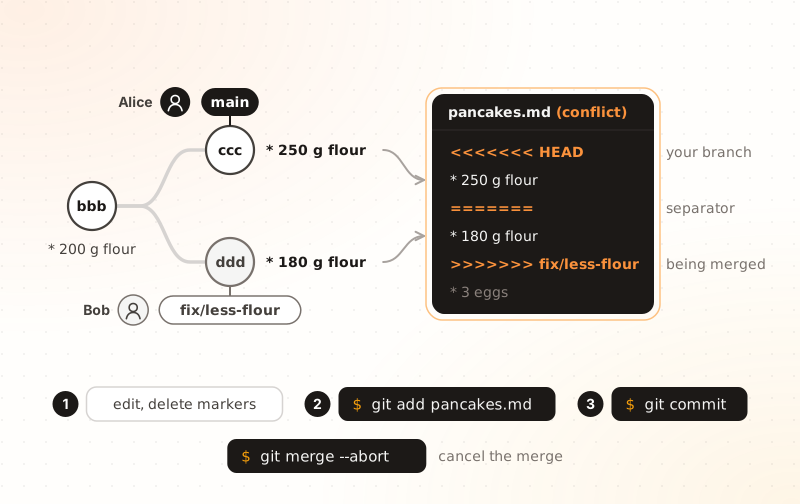
A conflict happens when two sides changed the same lines (or neighbors). If they touched different parts of a file, Git merges them without asking.
$ git merge fix/less-flour
Auto-merging pancakes.md
CONFLICT (content): Merge conflict in pancakes.md
Automatic merge failed; fix conflicts and then commit the result.
git status lists the file as both modified: pancakes.md, and the file now contains both versions between markers:
<<<<<<< HEAD
* 250 g flour
=======
* 180 g flour
>>>>>>> fix/less-flour
To resolve it:
- Edit the file: keep the right version (or write a third one) and delete the 3 marker lines.
git add pancakes.mdto mark it as resolved.git commit(orgit merge --continue) to finish.
VS Code and Cursor show buttons above each conflict (Accept Current, Accept Incoming, Accept Both), and git mergetool opens an external tool. To give up and go back to before the merge, run git merge --abort.
While you rebase, ours is the branch you are replaying onto (for example main) and theirs is your own commit being replayed. So git checkout --ours does not mean "keep my work". I checked it: in a rebase, --ours gave me the flour value from main.
What is inside a merge commit?
A merge commit has 2 parents, so there are 2 possible diffs. Let mmm be the merge commit:
git diff mmm^1 mmm   # what the merge brings to main
git diff mmm^2 mmm   # what the merge brings to the merged branch
git show mmm is different: it only shows lines that differ from both parents. After a clean merge it is empty. After a conflict that you resolved by hand, it prints a combined diff with two columns of signs, one per parent. Here Alice had 250 g, Bob had 180 g, and the resolution is 220 g:
diff --cc pancakes.md
--- a/pancakes.md
+++ b/pancakes.md
@@@ -1,1 -1,1 +1,1 @@@
- * 250 g flour
 -* 180 g flour
++* 220 g flour
Two more facts. git log -p does not show diffs for merge commits by default. And git show --remerge-diff mmm (Git 2.36 or newer) always shows what your resolution changed compared with an automatic merge.
My advice: put nothing but conflict resolutions in a merge commit. Anything else is invisible in most views, including pull request reviews.
Merge resolves conflicts once, rebase once per commit
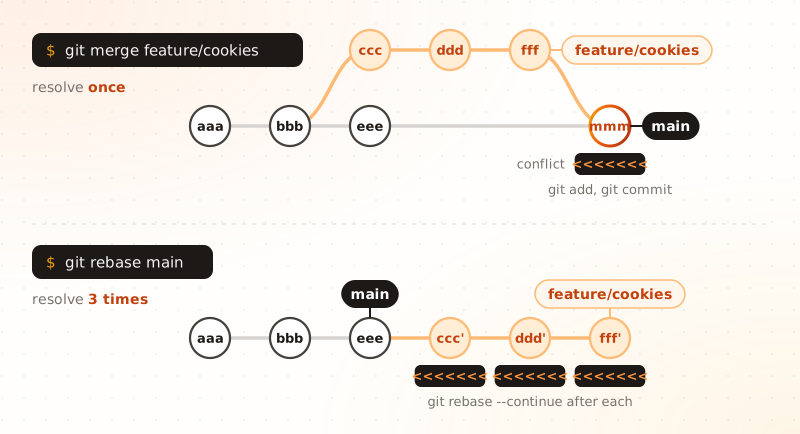
git add and git commit. With a rebase, every replayed commit that touches the same line can stop again, so you may resolve it three times.This is the hidden cost of rebase. The figure shows the worst case, where all 3 commits touch the same lines.
- Merge: all the differences meet at once, at the end. You resolve them once, inside the merge commit.
- Rebase: Git replays your commits one by one. Each commit that touches a conflicting area stops the rebase. You fix it, run
git add, thengit rebase --continue, and the next one may stop again. A commit that does not touch the conflicting lines passes without stopping.
$ git rebase main
Auto-merging pancakes.md
CONFLICT (content): Merge conflict in pancakes.md
error: could not apply ed8563a... fix(pancakes): use 180 g flour
hint: Resolve all conflicts manually, mark them as resolved with
hint: "git add/rm <conflicted_files>", then run "git rebase --continue".
hint: You can instead skip this commit: run "git rebase --skip".
hint: To abort and get back to the state before "git rebase", run "git rebase --abort".
git rebase --skip drops the commit that stopped, and git rebase --abort puts everything back as it was before the rebase.
Ways to reduce the pain:
- Squash first with
git rebase -i(Part 5): fewer commits to replay means fewer stops. - Turn on rerere with
git config --global rerere.enabled true: Git records how you resolved a conflict and reuses the resolution when it sees the same one again. - Rebase often: a small drift gives small conflicts.
- Or merge
maininto your branch instead, if your team accepts merge commits.
Part 4: juggling several tasks
Stash puts unfinished work on a shelf
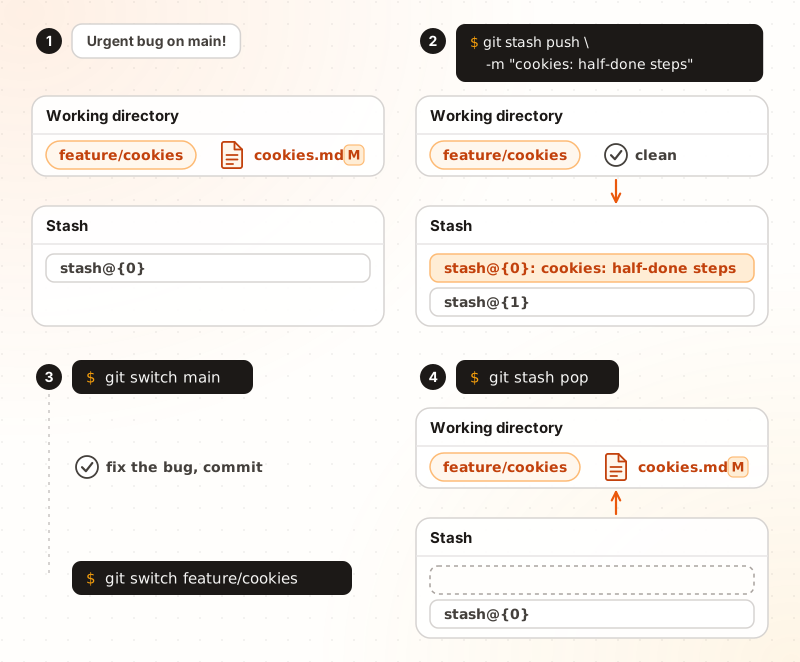
You are in the middle of an edit and an urgent bug lands on main. You are not ready to commit. Put the work on a shelf:
git stash push -m "cookies: half-done steps"   # shelve, with a name
git switch main                                # fix the bug, commit...
git switch feature/cookies
git stash pop                                  # take the work back
The stash is a stack: the newest entry is stash@{0}. Useful options:
git stash listshows the entries with their names.git stash popapplies the newest entry and removes it.git stash applyapplies it and keeps it.git stash push -ualso shelves untracked files, which a plain stash skips.
For a long interruption, a normal commit named "WIP" on your branch is safer than a stash: stashes are easy to forget.
Worktrees give each branch its own folder
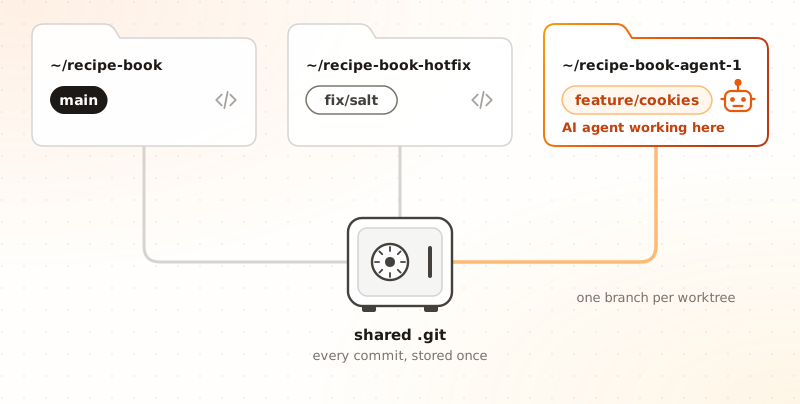
Switching branches changes the files in your folder. A worktree avoids that: it is a second folder, linked to the same repository, with its own branch checked out.
git worktree add ../recipe-book-hotfix fix/salt                  # existing branch
git worktree add -b feature/cookies ../recipe-book-agent-1       # new branch
git worktree list
git worktree remove ../recipe-book-hotfix
All worktrees share one .git, so there is no second clone and every commit is stored once. One rule: a branch can be checked out in one worktree at a time, and Git refuses the second attempt.
Worktrees became popular again with AI coding agents. If several agents work in parallel, give each one its own worktree and branch, so they never overwrite each other's files. Tools such as Cursor use the same idea.
Part 5: rewriting history before you share it
Interactive rebase turns messy commits into a clean story
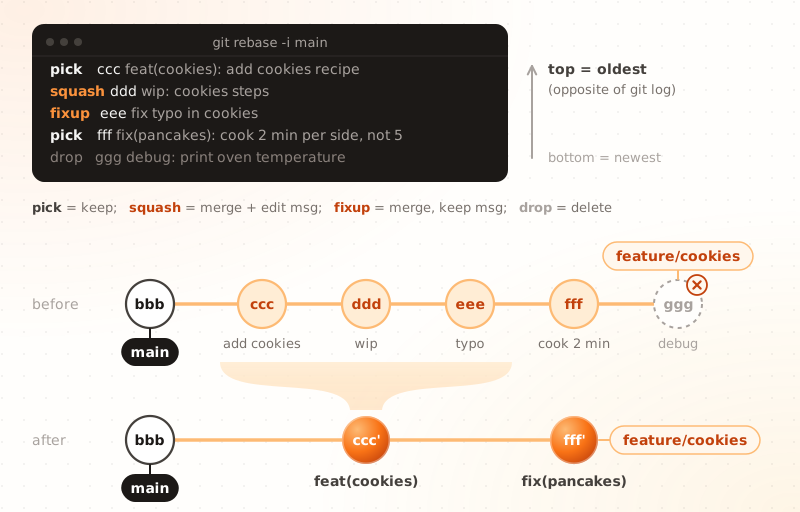
git log. Five messy commits become two clean ones.Interactive rebase lets you edit a series of commits before you share them. git rebase -i main opens a list of the commits of your branch, one line per commit, and you change the word at the start of each line:
| Word | What it does |
|---|---|
pick |
Keep the commit as it is |
reword |
Keep the changes, edit the message |
edit |
Stop here so you can change the commit itself |
squash |
Merge into the previous commit and combine both messages |
fixup |
Merge into the previous commit and keep only its message |
drop |
Delete the commit |
git rebase -i main     # every commit since main
git rebase -i HEAD~5   # or just the last 5
One trap: the list is oldest first, the opposite of git log. A squash or fixup line is folded into the line above it. My earlier post on squashing walks through this step by step.
Fixup and autosquash repair an older commit

A reviewer finds a problem in ccc, which is not your last commit. Do not add a "fix review" commit at the end. Record the fix as a fixup of that commit, then let Git put it in the right place:
git add pancakes.md
git commit --fixup ccc
git rebase -i --autosquash main
--autosquash reorders the todo for you: the fixup! commit moves right under ccc and is folded into it. To make it the default for interactive rebases, run git config --global rebase.autosquash true.
Cherry-pick copies one commit to another branch
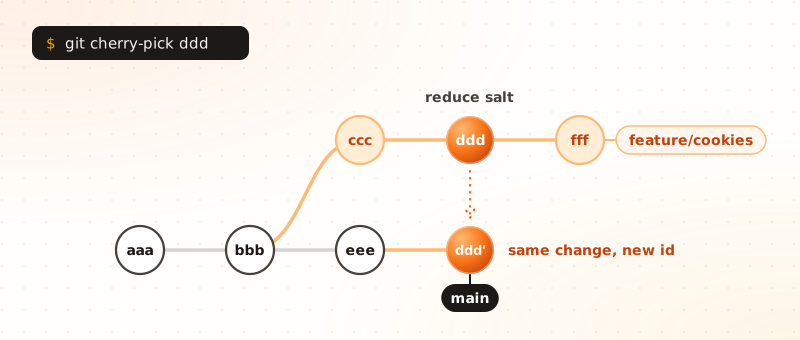
Sometimes you want a single commit from another branch, not the whole branch. A typical case: a fix made on the wrong branch.
git switch main
git cherry-pick ddd       # copy the change of ddd onto main
git cherry-pick -x ddd    # same, and note the original id in the message
Cherry-pick creates a new commit (ddd') with the same change. The original stays on its branch, so if you later merge that branch, Git usually handles the duplicate change without trouble.
After a rewrite, force-push with a lease
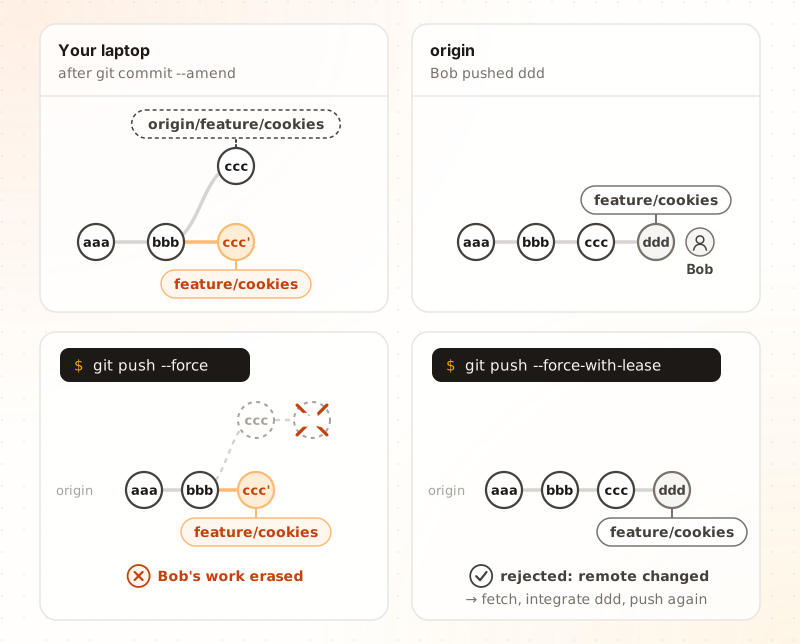
--force overwrites whatever is on the remote. --force-with-lease refuses because someone pushed since your last fetch.After an amend, a rebase or a squash, your local commits have new ids, so a normal git push is refused. You have to overwrite the remote branch. There are two ways:
git push --forceoverwrites no matter what is there. If a teammate pushed in the meantime, their commits vanish.git push --force-with-leaseoverwrites only if the remote is still where you last saw it. Otherwise it refuses.
$ git push --force-with-lease
 ! [rejected]        feature/cookies -> feature/cookies (stale info)
error: failed to push some refs to '../remote.git'
When that happens, fetch, integrate the new commits, and push again. Use --force-with-lease only on your own branch, never on main.
One catch: if your editor fetches in the background, your "last seen" position may already include the new commit, and the lease no longer protects you. Add --force-if-includes (Git 2.30 or newer) to check that you really integrated what you fetched:
git push --force-with-lease --force-if-includes
Putting it together: a review-friendly workflow
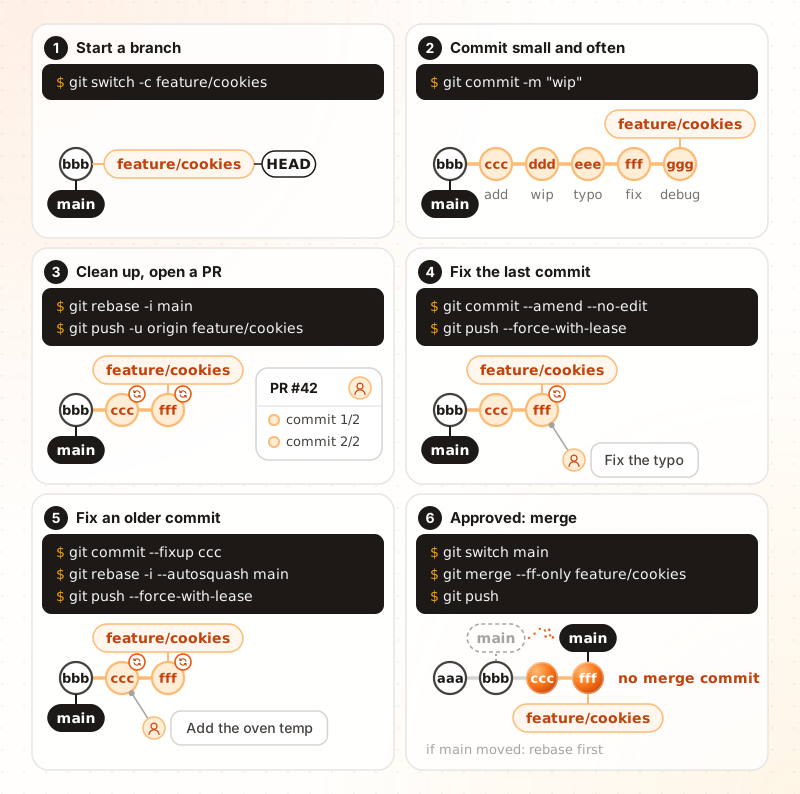
main.Here is the workflow I use every day, told with the recipe book.
- Start a branch and commit small and often:
git switch -c feature/cookies. No need for clean messages yet. - Clean up before the PR.
git rebase -i mainsquashes the noise into one commit per independent topic. Here that isfeat(cookies)for the feature andfix(pancakes)for a bug I found on the way. The reviewer can read the PR commit by commit instead of one mixed diff. Then push:git push -u origin feature/cookies. - Review remark on the last commit: fix it, then
git commit --amend --no-editandgit push --force-with-lease. - Review remark on an older commit:
git commit --fixup <id>, thengit rebase -i --autosquash mainandgit push --force-with-lease. Both commits stay clean, as if the corrected version had been written from the start. - Approved. If
mainmoved, rebase on it first. Thengit merge --ff-only feature/cookiesandgit push. The history stays linear, with no merge commit. The section above explains why both commands are needed.
That is fine on your own branch before the merge. GitHub shows a "force-pushed" line in the PR, with a link to compare the old and new versions, so reviewers can follow what changed.
Part 6: finding what broke and when
Blame and log tell you who touched a line and why
Something is wrong in pancakes.md and you want to know where it came from. git blame prints, for each line, the commit and the author that last changed it:
$ git blame -L 3,6 pancakes.md
^f1b6db5 (Alice 2026-10-20 10:14:00 +0000 3) * 200 g flour
3cb7d48a (Bob   2026-10-21 09:02:00 +0000 4) * 3 eggs
^f1b6db5 (Alice 2026-10-20 10:14:00 +0000 5) * 300 ml milk
f736c5a7 (Alice 2026-10-22 18:40:00 +0000 6) * 1 tbsp of salt
The ^ in front of an id marks the very first commit of the repository. Then git show f736c5a tells you why the line changed, which is where a good commit message pays off.
Some useful variants:
git blame -L 3,6 pancakes.mdlimits the output to lines 3 to 6.git blame -w pancakes.mdignores whitespace-only changes.- A big reformatting commit hides the real authors. List its id in a file named
.git-blame-ignore-revs, then rungit config blame.ignoreRevsFile .git-blame-ignore-revs. git log -p -- pancakes.mdshows every change made to one file.git log -S "tbsp of salt"finds the commits that added or removed that exact text:
$ git log --oneline -S "tbsp of salt"
f736c5a feat(pancakes): season the batter
Bisect finds the guilty commit by halving history

The batter is too salty today, and it was fine at v1.0, 16 commits ago. You could test the commits one by one. git bisect does a binary search instead: it checks out the middle commit, you say whether it is good or bad, and half of the suspects disappear.
git bisect start
git bisect bad              # the current commit is bad
git bisect good v1.0        # this old one was good
# Git checks out a commit in the middle: test it, then answer
git bisect good             # or: git bisect bad
# ... repeat until Git names the first bad commit
git bisect reset            # go back to where you started
If you can write a script that exits with 0 when the commit is good and non-zero when it is bad, Git does everything for you:
git bisect start HEAD v1.0
git bisect run ./check-recipe.sh
On a history of 1,000 commits, it takes about 10 tests, because 2 to the power of 10 is 1,024. This is where atomic commits pay back. With one idea per commit, the culprit is a 1-line change that you understand in seconds. With a giant "update" commit that touches 47 files, bisect finds the commit and you are still lost.
Part 7: team rules that keep history useful
Choose how pull requests land on main
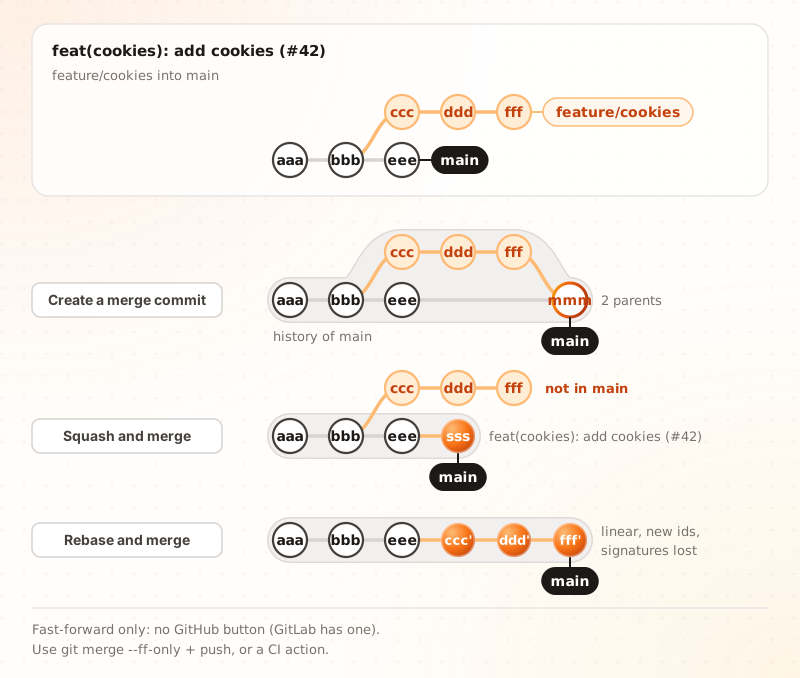
main contains afterwards.GitHub offers 3 merge buttons, and there is no fast-forward button among them:
| Button | What lands on main |
Good to know |
|---|---|---|
| Create a merge commit | All your commits plus a merge commit | Always --no-ff, even when a fast-forward was possible |
| Squash and merge | One new commit | The individual commits disappear from main |
| Rebase and merge | Copies of your commits, no merge commit | Always new ids and a new committer, so signatures are lost (GitHub docs) |
For a real fast-forward, run git merge --ff-only on your machine and push: GitHub then marks the pull request as merged. You can also use a CI action such as sequoia-pgp/fast-forward. GitLab has a "Fast-forward merge" method built in. To forbid merge commits on a branch, turn on the "Require linear history" protection.
What main contains after each option:
| Option | New commit on main |
ccc and ddd in the history of main |
Ids kept |
|---|---|---|---|
| Merge commit | mmm (2 parents) |
Yes | Yes |
| Fast-forward | None | Yes | Yes |
| Squash | sss (1 parent) |
No, only their content | No |
| Rebase, then fast-forward | None | Yes, as copies ccc' and ddd' |
No (yes if main had not moved) |
| GitHub "Rebase and merge" | None, no merge commit | Yes, as copies | Never, always new ids |
There is a trade-off. One squashed commit per ticket gives a short, readable main, but bisect can only point at the whole ticket. One commit per topic gives a finer bisect, at the cost of a longer history. I prefer one commit per independent topic, as in the workflow above.
Pick one commit message convention
The best convention is the one your team applies automatically. Here are the common ones, with the same fix written in each style.
| Convention | Example | Pros | Cons |
|---|---|---|---|
| Conventional Commits | fix(pancakes): cook 2 min per side, not 5 |
Machines can read it (changelog, semantic versioning with tools like semantic-release or release-please) | Debates about the type (chore or refactor?), the prefix eats title space, can turn into a ritual |
| Linux kernel style | pancakes: cook 2 min per side instead of 5 |
Scales to huge projects, the subsystem gives the scope, trailers like Signed-off-by: and Fixes: are searchable |
You must know the subsystem names, little changelog tooling |
| Gitmoji | 🐛 Cook pancakes 2 min per side |
Spot the kind of change at a glance | The meaning is ambiguous, emoji render badly in some terminals, hard to search |
| Ticket prefix | RCP-42 Cook pancakes 2 min per side |
Traceability to Jira or Linear | Unreadable without tracker access, links break when you migrate |
| Free imperative | Cook pancakes 2 min per side, not 5 |
Universal, no tool needed | No automation, drifts from one person to the next |
Any of them works if a tool enforces it. The next section shows how.
Git Flow or trunk-based: use the simplest model your releases allow
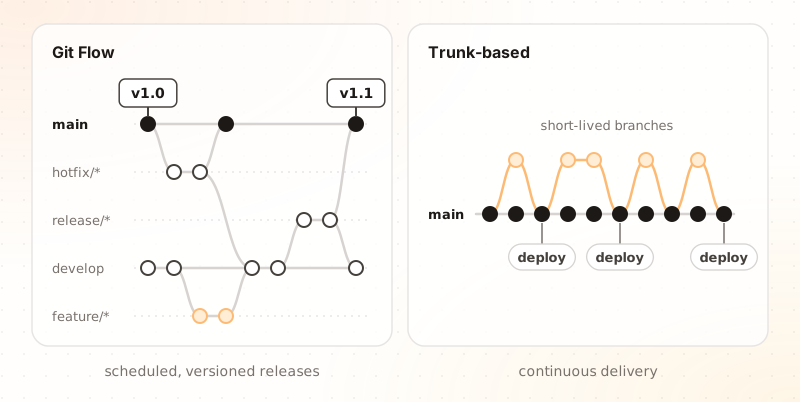
main and merges tiny branches fast.Git Flow, described in A successful Git branching model, uses long-lived branches (develop, release/*, hotfix/*) around scheduled, versioned releases. Its author later added a note saying it is a poor fit for software that is deployed continuously. For that case, trunk-based development is simpler: one main, and branches that live a few hours or days.
Two pitfalls with long-lived branches. Merging with --no-ff everywhere draws a lot of bubbles in the graph. And rebasing develop or a release branch breaks everyone who built on it.
Let hooks enforce the rules: pre-commit
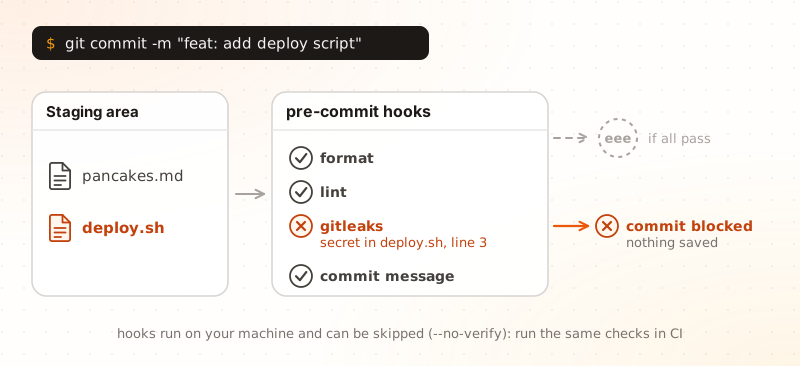
A hook is a script that Git runs at a given moment: pre-commit before a commit is created, commit-msg to check the message, pre-push before a push. They live in .git/hooks/, which is not versioned, so teammates do not get them. Two ways to share hooks:
- Keep them in a folder of the repository and run
git config core.hooksPath .githooks. This blog does it:.githooks/pre-pushcallsgit lfs pre-push. - Use the pre-commit tool: you list the checks in one file, and it installs and runs them.
Here is a .pre-commit-config.yaml for a Python project. I took the versions from pre-commit autoupdate on the day I wrote this, so run it again to get the latest:
repos:
  - repo: https://github.com/pre-commit/pre-commit-hooks
    rev: v6.0.0
    hooks:
      - id: trailing-whitespace
      - id: end-of-file-fixer
      - id: check-added-large-files
  - repo: https://github.com/astral-sh/ruff-pre-commit
    rev: v0.17.3
    hooks:
      - id: ruff-check
      - id: ruff-format
  - repo: https://github.com/gitleaks/gitleaks
    rev: v8.30.0
    hooks:
      - id: gitleaks
  - repo: https://github.com/compilerla/conventional-pre-commit
    rev: v4.4.0
    hooks:
      - id: conventional-pre-commit
        stages: [commit-msg]
pre-commit install                        # the checks on each commit
pre-commit install --hook-type commit-msg # the message check
pre-commit run --all-files                # run everything once, on all files
One limit: git commit --no-verify skips the hooks. Run the same checks in CI, which nobody can skip.
Anyone can commit as you unless you sign
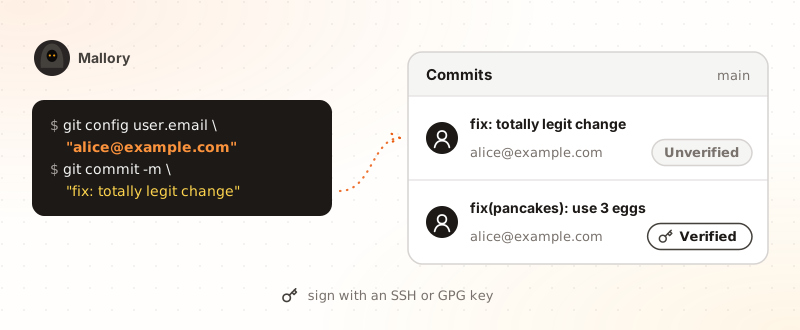
The name and email in a commit are just text, so they prove nothing. Only a commit signed with a key that you registered on GitHub or GitLab can be trusted. Since Git 2.34 you can sign with the SSH key you already use:
git config --global gpg.format ssh
git config --global user.signingkey ~/.ssh/id_ed25519.pub
git config --global commit.gpgsign true
Then add the same public key to your account as a signing key. Commits now show a "Verified" badge. On GitHub, "vigilant mode" also marks all your unsigned commits as "Unverified", which makes forged ones stand out.
Remember that the "Rebase and merge" button drops signatures, as seen above.
Rules worth writing down
| Do | Don't |
|---|---|
Protect main: require a pull request and passing checks |
Push straight to main |
Use --force-with-lease, and only on your own branches |
Use --force, or force-push main |
| Run the hooks again in CI | Trust hooks alone: --no-verify skips them |
| Turn on "Require linear history" if you fast-forward | Mix merge commits and rebases without a team rule |
| Sign commits | Trust the author name shown in a commit |
| Keep secrets out of the repository and revoke leaked ones | Delete a leaked secret in a new commit and call it fixed |
Big binary files belong in Git LFS
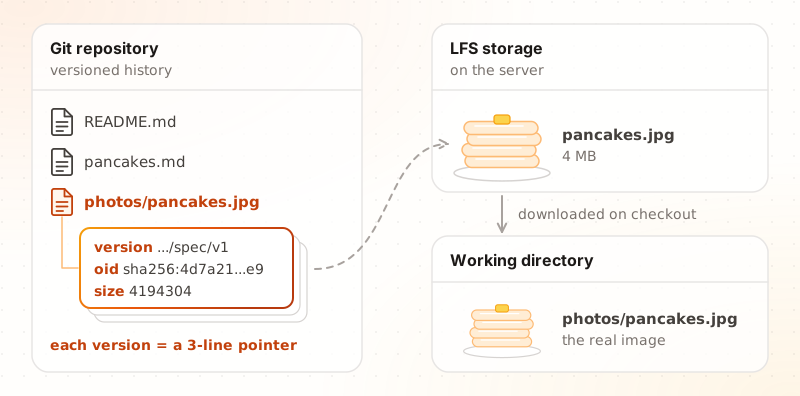
Every version of a big binary file stays in the history forever, and every clone downloads all of them. Git LFS (Large File Storage) keeps the heavy files elsewhere. Git versions a tiny text file, the pointer, and downloads the real file only when you check out that version:
version https://git-lfs.github.com/spec/v1
oid sha256:4d7a214614ab2935c943f9e0ff69d22eadbb8f32b1258daaa5e2ca24d17e2ee9
size 4194304
git lfs install            # once per machine
git lfs track "*.jpg"      # writes the rule in .gitattributes
git add .gitattributes photos/pancakes.jpg
git commit -m "chore: store photos in Git LFS"
The rules live in .gitattributes, which you commit. This blog stores its images that way:
assets/images/**/*.png filter=lfs diff=lfs merge=lfs -text
assets/images/**/*.jpg filter=lfs diff=lfs merge=lfs -text
assets/images/**/*.svg filter=lfs diff=lfs merge=lfs -text
Three things to know. git lfs track only affects new files: to move files that are already in the history, use git lfs migrate import, which rewrites history (see the rules above). Hosting services limit the LFS storage and bandwidth of a free plan. And for machine learning datasets and model weights, tools such as DVC or the Hugging Face Hub are usually a better fit.
Real-life situations
You do not need to read this part in order. Open only the entry that matches your problem. Each one gives the commands, a one-line reason, and a link to the section that explains the idea.
I started in the wrong place
I started editing on main without creating a branch
Nothing committed yet. Create the branch now. Your uncommitted edits come with you:
git switch -c feature/cookies
git add cookies.md
git commit -m "feat(cookies): add cookies recipe"
Already committed, not pushed yet. Put a label on your work, then move main back to where the remote is:
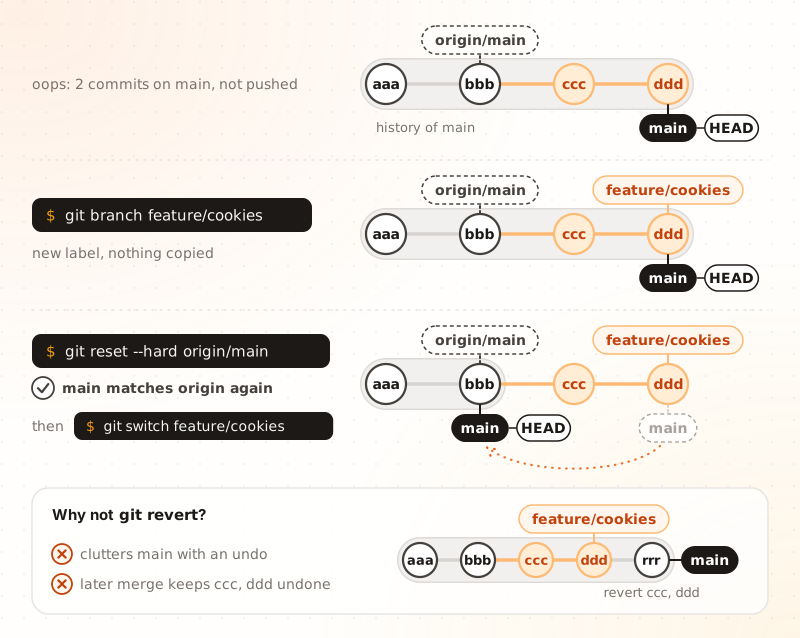
git branch feature/cookies puts a label on your work, then git reset --hard origin/main moves main back next to origin/main. ccc and ddd stay safe on the branch: continue with git switch feature/cookies.git branch feature/cookies # a new label on your current commit
git reset --hard origin/main # main goes back to the remote state
git switch feature/cookies # continue your work here
Why it works: a branch is only a label, so the commits are safe on the new one while main moves back. See a branch is a sticky label.
- Do this only if nothing is pushed. If
mainis already pushed and shared,git revertis the right tool. git reset --hardalso wipes uncommitted edits. Rungit stashfirst if your working directory is not clean.- Avoid
git reverthere when the commits are local.mainwould keep the mistake and its undo forever, and mergingfeature/cookieslater would not bringcccanddddback, because Git sees them as already inmain. The picture draws one revert commitrrr, butgit revert ccc dddcreates two (one per commit). With--no-commitfollowed by onegit commit, you get a single one.
I committed on the wrong branch
Say the salt fix landed on feature/cookies instead of fix/salt. Note its id, copy it to the right branch, then remove it from the wrong one:
git log --oneline -1                 # copy the id of the misplaced commit
git switch fix/salt
git cherry-pick <id>                 # copy the commit here
git switch feature/cookies
git reset --hard HEAD~1              # remove it here (only if not pushed)
Why: cherry-pick copies a commit, reset removes the original. See cherry-pick and reset.
I made commits in detached HEAD
Give those commits a branch before you switch away:
git switch -c rescue/cookies
If you already switched and the commits seem lost, find them in the reflog and attach a branch to the id:
git reflog
git branch rescue/cookies <id>
Why: commits made in detached HEAD belong to no branch, so Git can forget them. See reflog.
I am out of sync with the remote
I committed without pulling first, and my push is rejected
Git tells you the remote has commits you do not have:
 ! [rejected]        main -> main (fetch first)
error: failed to push some refs to '[email protected]:alice/recipe-book.git'
hint: Updates were rejected because the remote contains work that you do
hint: not have locally. This is usually caused by another repository pushing
hint: to the same ref. You may want to first integrate the remote changes
Replay your commits on top of theirs, fix conflicts if any, then push:
git pull --rebase
git push
Why: pull --rebase is a fetch followed by a rebase of your commits onto the new remote commits. To make it the default, run git config --global pull.rebase true. Never answer this error with --force on a shared branch. See rebase.
I have uncommitted edits and forgot to pull
Shelve your edits, pull, and take them back:
git stash push -m "cookies: half-done steps"
git pull
git stash pop
git stash list shows the name you gave. There is a shortcut that does all three steps:
git pull --rebase --autostash
Git only refuses to pull if the incoming commits touch files you modified. If it does, the stash route above is the way. See stash.
My branch is behind main and my pull request has conflicts
Bring the latest main under your commits, resolve the conflicts, and update the remote branch:
git fetch
git rebase origin/main
# resolve each conflict, then: git add <file> and git rebase --continue
git push --force-with-lease
If your team accepts merge commits, git merge origin/main is the alternative: one conflict resolution instead of one per commit. See merge versus rebase conflicts.
I want to throw away everything local and match the remote
git fetch origin
git reset --hard origin/main   # your branch becomes identical to the remote
git clean -n                   # preview the untracked files that would be deleted
git clean -fd                  # delete them, there is no undo
Why: reset --hard rewrites tracked files, and clean removes the untracked ones that reset does not touch. Local commits can still be found in the reflog, but untracked files cannot.
I need to fix what I committed
My last commit has a typo or a missing file
git add README.md
git commit --amend --no-edit    # keep the message
git commit --amend              # or change the message
If the commit is already pushed to your own branch, follow with git push --force-with-lease. See amend.
I need an old version of one file
git show ccc:pancakes.md                  # print the file as it was in ccc
git restore --source ccc pancakes.md      # bring that version back
Why: a commit is a full snapshot, so any file of any commit is available. See snapshots.
I committed a secret or a huge file
For a secret, revoke the key first. It is compromised as soon as it was pushed, whatever you do next.
Then clean the history:
- Last commit, not pushed:
git rm --cached <file>, add it to.gitignore, thengit commit --amend. - Older or already pushed: rewrite the history with
git filter-repo(or BFG Repo-Cleaner), force-push, and tell your team to re-clone. For a big file,git lfs migrate importis an alternative.
To avoid a repeat, add the file to .gitignore and use the gitleaks and check-added-large-files hooks from the pre-commit section.
I need to undo a merge that is already pushed
git revert -m 1 <merge-id>
-m 1 keeps the first parent, usually main. The trap: to merge the same branch again later, you must first revert this revert, or the old changes will not come back. See revert.
I need a rescue
I deleted a branch, or a rebase went wrong
In the middle of a rebase, give up and go back to the start:
git rebase --abort
Rebase already finished, but the result is wrong:
git reset --hard ORIG_HEAD
Deleted a branch. Git printed its last id when you deleted it (Deleted branch feature (was ce1ca53)). Recreate it from that id, or look in the reflog:
git branch feature/cookies ce1ca53
git reflog                      # if you lost the id
Why: deleting a branch or rewriting history only moves labels. The commits stay in the object store for a while. See reflog.
Cheat sheet: I want to…
| I want to… | Command | Read more |
|---|---|---|
| See what I changed | git diff or git diff --staged |
Reading a diff |
| Unstage a file | git restore --staged <file> |
Restore |
| Discard my edits in a file | git restore <file> |
Restore |
| Fix the last commit | git commit --amend |
Amend |
| Undo the last commit and keep my work | git reset --soft HEAD~1 |
Reset |
| Undo a pushed commit | git revert <id> |
Revert |
| Find a commit I lost | git reflog |
Reflog |
| Move commits made on main by mistake | git branch, then git reset --hard origin/main |
FAQ |
| Switch branch with unfinished work | git stash push -m "name" |
Stash |
| Update my branch with main | git fetch, then git rebase origin/main |
Rebase |
| Clean up my commits before a PR | git rebase -i main |
Interactive rebase |
| Fix an older commit | git commit --fixup <id>, then git rebase -i --autosquash main |
Fixup |
| Take one commit from another branch | git cherry-pick <id> |
Cherry-pick |
| Push after rewriting my branch | git push --force-with-lease |
Force-push |
| Find which commit broke something | git bisect |
Bisect |
| Match the remote exactly | git fetch, then git reset --hard origin/main |
FAQ |
To go further:
- Pro Git, the free reference book.
- Learn Git Branching, an interactive game for branches and rebase.
- Oh Shit, Git!?!, recipes for when things go wrong.
Found a mistake or a missing situation? Write to [email protected].